Epiq Discover Version 3.9.1 Release Notes (March 2024)
This release contains updates and improvements to Epiq Discover. The following notes highlight new enhancements to Epiq Discover and provide a list of bugs addressed in this release.
Release Highlights
Release 3.9.1 contains the following features, as well as additional enhancements listed in this document. The following sections contain details about these features and enhancements.
-
Keywords panel. Added Keywords panel, which enables you to modify the keywords within a filter job and then rerun the filter job within one of the following data sets.
-
The document population in place when the filter originally ran.
-
The current document population, which might have changed since the filter previously ran.
-
-
Calculate Unique Hits by filter job. This feature enables you to calculate unique hits for keywords to help streamline documents for review by isolating potentially over-inclusive keywords.
-
Delete Production Job Information Box. Now, when you delete a production, you can view the status and details of the Delete Production job in the Jobs Overview page and the JOBS page in Review.
Enhancements in Release 3.9.1
This release contains the following enhancements and updates.
Process
Handling ZIPs with duplicate filenames that contain accented characters
When processing ZIP files, Epiq Discover first utilizes 7-Zip to decompress the files. If filenames in the ZIP contain accented characters, 7-Zip cannot read them. When this occurs, Epiq Discovery then uses a secondary application, Unzip, to decompress the files. While Unzip can process accented characters, if it encounters duplicate filenames with those characters, it sends a prompt and waits for a response that cannot occur.
This release contains an update to bypass Unzip’s prompt. Now, if a ZIP file contains duplicate filenames with accented characters, Epiq Discover appends a tilde (~) after the extension of the file. Duplicate filenames show an incremental number appended after the tilde: ã file.txt~, ã file.txt~1, ã file.txt~2, and so on. (843413)
Analyze
Calculate unique hits by filter job
Expanded the ability to calculate unique hits for keywords to help streamline documents for review by isolating potentially over-inclusive keywords. Now, you can calculate the unique hits for keywords each time you run a filter. (396559, 713149)
Enable Calculate Unique Hits
In ANALYZE>FILTER, when you create or update a filter template, in Template Info, under Keyword, select the Calculate Unique Hits option.
-
When you create a filter template after 3.9.1, this checkbox is checked by default.
-
For filter templates created before 3.9.1, this checkbox is unchecked by default.
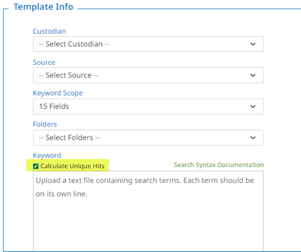
When you run a filter job with keywords and Calculate Unique Hits selected, the following occurs.
-
For any filtered document that has a unique hit from one of the keywords provided, the system populates the KeywordHits Unique - Filter job name with the unique keyword.
-
For example, suppose the filter keywords include Red and Green. When a filtered document contains only Red, the system populates the KeywordHits Unique - Filter job name field for that document with Red.
-
-
For any filtered document has multiple hits from two or more keywords from the keyword list that you supplied, the system does not populate this field.
-
Using the same example, when a filtered document contains both Red and Green, the hit is not unique, and no further action occurs.
-
Show Unique Hits in Search Term Reports
In projects created in 3.9.1 or later, use the Search Term Report to view the unique hits.
To view this report, perform the following steps.
-
In Inspect or Review, click
 at the top of the page, and select REPORT.
 -
In the Search Term Report dialog box, under Search Term, select the Calculate Unique Hits option.
-
In the Search Term field, type one or more terms.
-
Click Create.
Updates to the Search Hit Report
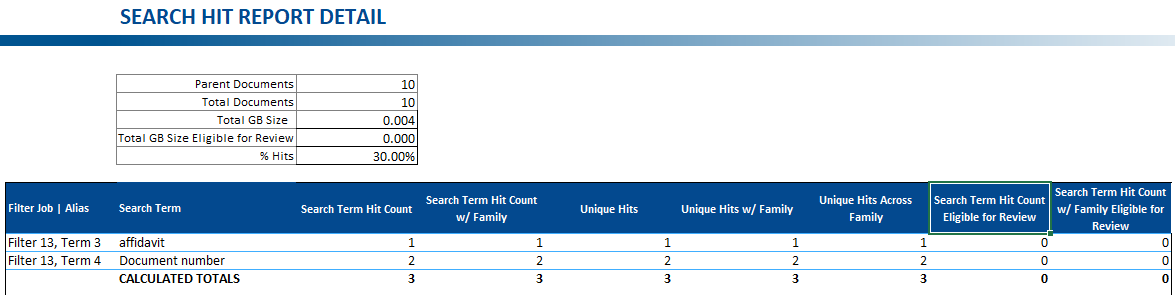
For any Search Hit Reports run after 3.9.1 is released, streamlined the column names in the Search Term Report for clarity. The following figure shows the updated Search Hit Report detail. (386057, 811983)
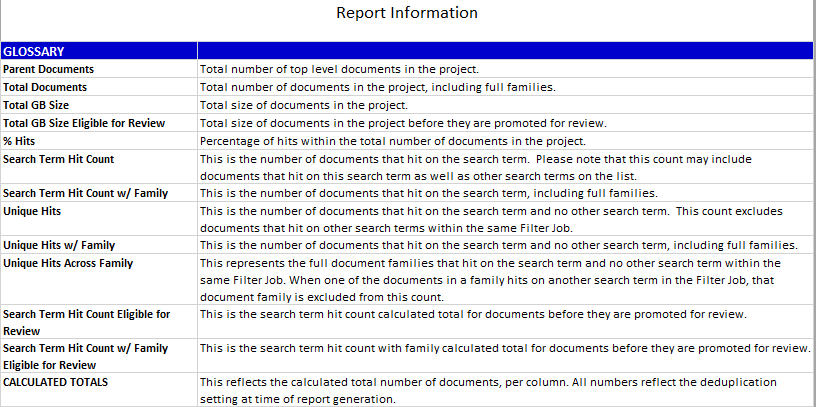
The following figure shows the updated Search Hit Report Glossary.
Inspect/Review
Modify Keywords in Inspect or Review
Using the new Keywords feature, you can now rerun an existing filter job with keyword modifications in INSPECT or REVIEW. Now, you can add, remove, or edit the keywords within a filter job. After adding, modifying, or removing keywords, you can choose to rerun a filter job within one of the following data sets.
-
The document population in place when the filter originally ran.
-
The current document population, which might have changed since the filter previously ran.
To open the Keywords panel in Inspect or Review, on the left pane, select Keywords  .
.
-
For more information about the Keywords panel, refer to About updating filter jobs in Inspect.
-
To rerun the filter job with modified keywords, refer to Update a filter job in Inspect.
Search Builder KeywordHits Unique field
In Search Builder, for Filter jobs created in 3.9.1 or later, you can search for documents using KeywordHits Unique - Filter job name. Note that Filter job name represents the actual name of the job. This field appears in Search Builder if there are keyword unique hits when you create or rerun a filter job. Refer to the Analyze section of this document for more information this field. (396559, 713149)
To find documents with this field populated with a specific keyword, select KeywordHits Unique field for the specific filter job, and then select the keyword.
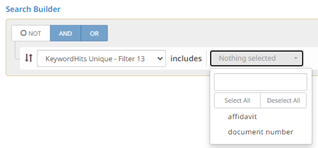
Previously, keyword search hits were available in the Keyword Hits field. Now, this field is more flexible by identifying the filter.
With the introduction of the KeywordHits Unique – Filter job name field, if your project has a large number of filter jobs defined (for example, 200 or more filter jobs), you might experience a delay between the time when the spinner appears after Search Builder is selected and when Search Builder opens. This occurs because the system loads the filter job information before displaying.
Document List updates
Previously, it was not clear when the Document List page had completed loading. While it was still loading, you could click the arrow to advance to the next page, but the page did not advance as expected. Now, when the Document List page completes loading, the next page arrow changes from gray (not yet available) to black (enabled, as shown in the following figure) to indicate when you can click it to advance to the next page. (832190)

Production
Now, when you delete a production, you can view the status and details of the Delete Production job in the Jobs Overview page and the JOBS page in Review. The Delete Production job displays the following information. (820223)
|
Submitted By |
The user who submitted the job. |
|
Submitted Date |
The date the job was submitted. |
|
Production Name |
Name of the production. |
|
Document Count |
Number of documents produced. |
|
Page Count |
Number of pages. |
|
Bates Begin |
Begin Bates number. |
|
Bates End |
End Bates number. |
|
Date Produced |
Production created date. |
|
Produced By |
The user who submitted the job. |
|
Job Id |
Job identification number. |
Bugs fixed in Release 3.9.1
The following bugs were resolved in this version.
|
Number |
Title |
|---|---|
|
674624 |
Production | Deletion of the production job takes longer than expected for 325k pages |
|
740295 |
Production | Production is failing with error 'class com.aspose.pdf.internal.l7t.l1v cannot be cast to class com.aspose.pdf.internal.l7t.ly' |
|
817706 |
Production | Production Job failed with errors "Cannot read the array length because "<local2>" is null" |
|
829063 |
Report | Search hit report issue with 'Not in Hosting' document count |
|
829303 |
Search Builder | Searching Document state for DeNISTed but it shows NIST file. |
|
832070 |
Inspect | Document Showing up on UI are not in sync with page number when users click the next page (icon) |
|
834215 |
Inspect/Review | Undocked viewer, fields are not populated in document list |
|
836633 |
Search: Search with family does not return the right number of documents |
|
837002 |
Production | Searchable PDF | Production failing when an image is not available |
|
837113 |
Project Manager | Unable to send an invite to the user |
| 839086 | Microsoft 365 Collection | In Select Microsoft Accounts to Collect, all accounts might not properly appear |
| 840427 | Search | New keyword search tab displaying hits on "1" and "2" from "term 1" language in keyword hit field |