Epiq Discover Version 4.5 Release Notes (December 2025)
This release contains updates and improvements to Epiq Discover. The following notes highlight new enhancements to Epiq Discover and provide a list of bugs addressed in this release.
Release Highlights
Release 4.5 contains the following features, as well as additional enhancements listed in this document. The following sections contain details about these features and enhancements.
-
Export RSMF to Relativity. Epiq Discover now supports exporting Microsoft Teams and Slack data in RSMF format through the Transfer to Relativity feature.
-
Retrieve predictive scores from your AI Model. You can now retrieve predictive scores from the Epiq AI for the documents added to the AI Model. You can retrieve scores from the model you created in Epiq AI. The predictive scores help you speed up the review process by reviewing high-scoring documents first, as these contain the most relevant content.
-
[Feature Preview] Collect Slack data. You can now collect Slack data. When collecting Slack data, you can select the data types (Direct Messages, Private Channels, Public Channels, and so on) to process from the selected Slack file. You can also filter messages by a specified date range and split them into separate documents by days, weeks, or months.
-
Export to PDF. In Inspect and Review, you can now export selected documents as PDF files. You can export them as individual PDFs or merge multiple documents into a single PDF. The export can include original and redacted native files, original and redacted original image, and production images. The output is available as a ZIP file for download via DataHub.
-
View reviewer metrics. Added the ability to view reviewer metrics, which provide insights into reviewer productivity and overall review speed. These metrics are available in the Project Dashboard and the Reviewer Metrics Report.
-
Search Builder updates. Enhanced the Search Builder to provide a more intuitive and user-friendly experience. The update includes a dedicated pane for field selection, clearer operator labels, improved visual indicators for grouped conditions, the ability to preview the search in both technical and natural language, and better placement of controls for streamlined interaction.
-
Chat enhancement. You can now quickly view the exact part of the source document used to generate a specific section of the Chat response. Hovering over a citation number in the chat response displays a popup with the highlighted quote from the source document. Also, added 12 predefined suggested prompts to the bottom of the Chat prompt box to help start a conversation.
-
Client Dashboard updates. Updated Client Dashboard to improve usability and provide more relevant insights.
In the previous 4.4 release of Epiq Discover, we introduced a Feature Preview for native Excel redactions. After evaluating the feature, we determined that additional functionality is needed to deliver a more robust experience. As a result, this Feature Preview is not available in release 4.5. It will be reintroduced in an upcoming release.
Enhancements in Release 4.5
This release contains the following enhancements and updates.
General
New/Classic interface update
As part of our ongoing improvements, we removed the option to switch between Classic and New interface. You now have full access to the New interface experience, ensuring full availability of the latest features and enhancements. The New interface delivers a modern design, improved performance, and enhanced accessibility. Retiring the toggle allows us to focus on delivering updates and innovations exclusively in the New interface. (1018119)
Collection
[Feature Preview] Added the ability to collect Slack data
You can now collect Slack data. To collect Slack data, first, upload the Slack data to DataHub and then collect the file using Collect>Slack. When performing this action, you can select the data types (Direct Messages, Private Channels, Public Channels, and so on) to process from the selected Slack file. You can filter messages by a specified date range and split them into separate documents by days, weeks, or months.
Note that the Slack collection is currently available as a Feature Preview and is not enabled by default. Enabling this feature in Project Settings provides you with the opportunity to gain hands-on experience with a newly designed feature that is functional, but not complete. Use this preview feature with the understanding that it is not yet fully complete or supported.
After processing, you can view the messages from a chat in an HTML file. When you split the messages into separate documents, the system creates a separate document (HTML segment) for each group.
When you reprocess the same Slack data without promoting the previously generated HTML file, the system processes these files as follows.
-
For the same custodian, the system does not create the HTML file unless the previously generated file has been promoted. However, for a different custodian, the system creates a new HTML file.
-
If any messages in a private or public channel have been edited, the system generates a supplementary HTML file showing both the original and edited messages. This file is linked as a child document to the original HTML file. The name of the supplementary file includes the original HTML file name, followed by _SUPP and a number indicating the supplement version.
-
If new messages have been added to any chat, the system creates a new HTML file containing only the newly added messages.
-
When a custodian processes data in stages, for example, first for January and later for January and February, the system recognizes the overlap. In such cases, the previously processed January data is excluded from the new HTML file. If the HTML file for January has already been promoted, the new HTML file includes both January and February data.
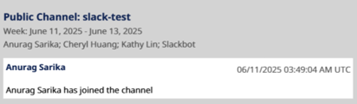
The HTML file header displays the following information:
-
Type of chat. Public Channel, Direct Message, Private Channel, or Group Direct Message.
-
Name of chat. Channel name or group chat name.
-
Message group by information. Day, Week, or Month
-
Date/month. Shows the start date of the weekly segmentation, specified date for daily segmentation, and month for monthly segmentation.
-
Name of participants
The image below shows an example of the HTML file header.
The HTML file name includes the following components.
-
Initials of the custodian’s last and first name.
-
Chat name
-
Thread ID
-
Letter “W” (for weekly segmentation)
-
Either the month (for monthly segmentation) or the start date.
The image below shows an example of a Slack HTML file name.

Emojis, emoticons, and GIFs (Giphy) appear in the HTML file, but system does not extract these elements as attachments. The following settings in Project Settings>Processing do not apply to Slack HTML files. However, they do apply to Canvas and List files when they are not shared through chat.
-
Embedded Image Extraction
-
Excluded File Extensions
-
Text Extraction Size
-
Enable MIME Type Extraction
Additionally, all of the above settings except Excluded File Extensions are applicable to attachments.
If the Slack option does not appear when you select Main Menu>Collect, this feature is not enabled. To enable this feature, contact your Epiq Discover Administrator.
Relativity Short Message Format (RSMF) file generation
When processing Slack data, the system generates an RSMF file for each HTML file to use in Relativity. You can transfer these files from Epiq Discover to Relativity, but you cannot view them in Epiq Discover.
The maximum size of an RSMF file is 200 MB or 10,000 events. If an RSMF file exceeds this limit, the system splits it based on conversation threads and time intervals.
The following list provides related Help topics.
-
To collect Slack data, refer to Collect Slack data.
-
For more information about Slack data fields, refer to Slack data fields.
-
To view Slack data collection job details, refer to View Slack data collection job details.
(953944, 908706, 944964, 908707, 943152, 952184, 976827, 987187)
Inspect/Review
View reviewer metrics
Added the ability to view reviewer metrics, which provide insights into reviewer productivity and overall review speed. This information is available in the following locations.
-
Reviewer Metrics table on the Project Dashboard
-
Reviewer Metrics Report
The metrics in the Reviewer Metrics Report are based on the time zone you select when generating the report, whereas the Project Dashboard reviewer metrics are based on the time zone set in Project Settings.
Reviewer metrics calculation
The system tracks a reviewer’s coding session activity to display relevant metrics. You can set a threshold for a reviewer’s maximum idle time that counts toward total coding time.
Coding session
Coding session activity includes selecting a coding form in the Coding Form dialog box, saving changes using Save or Save/Next, and docking or undocking the viewer while a coding form is selected. The session also includes selecting or deselecting a quick tag. The session ends when the idle timeout threshold is reached.
Set idle time threshold
You can set a threshold for reviewer idle time in Project Settings under Coding>Tracking using the new Idle Time Threshold field. The minimum idle time threshold you can set is 5 minutes, the default is 15 minutes, and the maximum is 60 minutes. The total coding time for a reviewer includes the specified threshold.
For example, if the idle time threshold is set to 15 minutes and a reviewer codes the documents for 5 minutes, the total coding time is 15 + 5 = 20 minutes.
When a reviewer is inactive for longer than the specified threshold, the system adds their idle time, only up to the threshold, to their coding time. The system includes idle time for each period of inactivity.
For example, if the idle time threshold is set to 15 minutes, and a reviewer:
-
Codes for 30 minutes
-
Is idle for 20 minutes
-
Codes again for 60 minutes
-
Is idle for 30 minutes
Then the total coding time is (30 + 15) + (60 + 15) = 120 minutes.
The following list provides related Help topics.
-
For more information about the Reviewer Metrics table on the Project Dashboard, refer to Reviewer metrics on the Project Dashboard.
-
To view the Reviewer Metrics Report, refer to View project reports.
-
For more information about the Reviewer Metrics Report, refer to Reviewer Metrics Report.
-
To view the Reviewer Metrics Report job details, refer to View Reviewer Metrics Report job details.
(964169, 963238, 964236, 985813, 985397, 983490, 999870, 965126, 998087, 998494, 998750, 1008088, 1008099, 1008114, 1008203, 1008207)
Search Builder updates
Enhanced the Search Builder to provide a more intuitive and user-friendly experience. The enhancements include access from the Main Menu, a full-screen layout, and refined labels and controls. (976159, 977721, 978659, 557987, 972720, 1006750, 1015890, 981294)
Access from the Main Menu
In addition to the Search box in Inspect and Review, you can now access the Search Builder by clicking Search Builder in the Main Menu.
Full-screen layout and refined labels and controls
You can now view the Search Builder in full screen, which eliminates excessive scrolling and provides better visibility of search conditions. This page provides a dedicated pane for selecting fields, more intuitive operator labels, improved visual indicators for grouped conditions, the ability to preview the search in both technical and natural language, and better placement of controls for streamlined interaction.
The image below shows the updated Search Builder page.
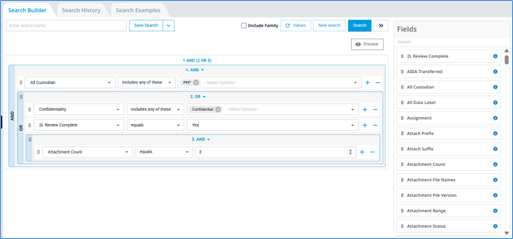
The Search Builder page now includes the Search Builder, Search History, and Search Examples tabs.
Search Builder tab
Use this tab to build your search conditions. You can also access this tab by clicking Search Builder in the Search box. For more information on how to use this tab, refer to Use Search Builder.
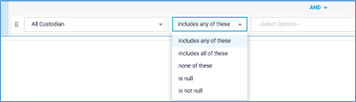
Also, for single-choice and multiple-choice fields, the operator drop-down list replaces the equals operator with the following options.
-
includes all of these (for multiple choice fields only)
-
include any of these
-
none of these
The image below shows the operator drop-down list for single-choice and multiple-choice fields.
Search History tab
Relocated search histories to this tab. You can also access this tab by clicking Search History in the Search box.
Search Examples tab
Relocated search examples to this tab. You can also access this tab by clicking Search Examples in the Search box.
Search box updates
In Inspect and Review, you can now expand the Search box for a clearer view of the search string. Clicking inside the box expands the Search box horizontally. (976167)
Additionally, if you select the Include Family option for a search and run it, the Search box displays a family inclusion indicator. The indicator also appears for saved searches or searches from search history that have the Include Family option selected. Unchecking the Include Family option removes the indicator. (386321)
The image below shows the family inclusion indicator Family displayed in the Search box.

Export documents as PDF files
In Inspect and Review, you can now export selected documents as PDF files using a new document action called Export to PDF. This feature allows you to export individual PDF files or merge multiple documents into a single PDF. You can include original and redacted native files, original and redacted original image, and production images. When you run this job, the system also runs the Image job to include images in the exported documents. The exported PDF files are saved in DataHub as a ZIP file, which you can download from there.
For documents with images, the system creates additional images when running the Export to PDF job. You can view these images in the PDF Export Image Viewer within the IMAGE Viewer. The exported files in DataHub include only one set of image files.
When you select Natives or OriginalImages as the export format, and if the document does not have a native file but has images, the system creates a PDF using images. If a document has neither natives nor images, the system skips it and logs the details in the job status and error report.
After the Export to PDF job completes, if the export of any selected document fails, the system generates a Failed Export to PDF Report. This report lists the documents that failed to export and provides the reason for each failure.
The Failed Export to PDF Report contains a summary and details about any export failures. This report displays the following tabs. (999497, 1018158)
-
Export to PDF Report Analyze contains information about the report and Export to PDF job filter conditions.
-
Export to PDF Report Summary shows summary information about the error messages that caused the failure and how often the error occurred.
-
Export to PDF Report Detail describes each document that failed to export, including the document number, file type, file name, file size, reason for failure, and generated date.
The following list provides related Help topics.
-
To export documents to PDF, refer to Export to PDF in Inspect.
-
To view Export to PDF job details, refer to View Export to PDF job details.
-
To view Failed Export to PDF Report, refer to View Failed Export to PDF Report.
Added the ability to retrieve predictive scores from the AI Model
You can now retrieve predictive scores from Epiq AI for the documents added to the AI Model. You can retrieve scores from the model you created in Epiq AI. The predictive scores help you speed up the review process by reviewing high-scoring documents first, as these contain the most relevant content. (1003529, 1012212)
To retrieve the predictive scores from the AI Model, perform the following steps in order.
-
Add documents to the AI Model in Epiq Discover.
-
Do the following in Epiq AI.
-
Locate your project and collection name, then change the Collection Type to Review.
-
Create and run models for the documents.
-
-
Retrieve predictive scores in Inspect or Review in Epiq Discover.
You can view the score in the new field labeled <model name> Score. You cannot modify or delete this field. Also, when you download produced or exported documents in the Desktop Client, the Epiq AI value of this field appears in the DAT file, which users can convert accordingly when using their preferred review platform.
The following list provides related Help topics.
-
To retrieve predictive scores from the AI Model, refer to Retrieve AI Model predictive scores.
-
To view the Retrieve Scores job details, refer to View Retrieve Scores job details.
Document List: Calculate the range of the date or number field values
In Inspect and Review, you can now calculate the range of the date, integer, or float field values for the current document population in the Document List. (849910)
To calculate the range of the date or number field values, follow these steps.
-
n the Main Menu, select > or Review.
-
At the top of the Document List, click
 .
. -
In the Tally, Sum, or Average dialog box, perform the following actions.
-
Under Function, select Average.
-
In Field, select a field from the drop-down list.
-
Click Calculate.
-
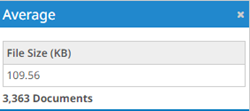
The Average dialog box displays the average of the values of the selected field.
-
Chat updates
Improved document linking between Epiq Discover and AI Model
The integration between Epiq Discover and the AI Model now uses Document Number instead of the system-generated Doc ID as the primary key for linking documents. This change ensures a consistent, user-recognizable identifier across applications, including Epiq Discover, Epiq AI, and Relativity.
The updated mapping between applications is as follows:
-
Document Number (Epiq Discover) → Doc Name (AI Model)
-
Doc ID (Epiq Discover) → Reference ID (AI Model)
These changes apply only to new projects in Epiq Discover. and align with the update in Epiq AI, which now uses Document Number as the primary document identifier for new data loads, replacing Reference ID. (1000717)
Suggested prompts
Added 12 predefined suggested prompts to the bottom of the Chat prompt box to help start a conversation. Clicking a suggested prompt inserts it in the prompt box, where you can modify it as needed. (1000556, 1015532)
Instant citation preview
Added a feature that lets you view the exact portion of the source document used to generate a specific section of a Chat response. When you hover over a citation number in the Chat response, the system displays a popup with the highlighted quote from the source document. (918298)
Assignment: Batch number format update
For projects that use coding forms, the batch number in the Name column of the Batch Status window now uses a five-digit format. This update improves sorting in other areas of Epiq Discover, including Search Builder and Document List. (1008195)
The image below shows the five-digit batch number displayed after the assignment name.

Metadata update
A new metadata field Batch is now available in both Inspect and Review. This field displays the batch number assigned when creating an assignment. You can use the Batch field to perform the following actions. (718881)
-
Search using Search Builder
-
Sort in Document List
-
Export to CSV
The Batch field is read-only. You cannot modify it using the Modify Metadata action, and it is not editable in Coding Forms or the Desktop Client.
Document Viewer: Content search update
In the Document Viewer, you can now search for terms in the TEXT viewer. To search for terms in the TEXT viewer, follow these steps.
-
In the TEXT viewer, click Content Search
 .
. -
Use the Content Search pane to search for terms.
The Content Search pane in the TEXT viewer replicates the core capabilities of the NATIVE and IMAGE viewers, including executing searches, navigating results, and viewing persistent highlights. These functionalities are presented with an improved design for enhanced usability. (996800)
For more information, refer to, Search in a document in Inspect.
Search highlights update
Updated the Search box in Inspect and Review to improve how search terms appear in returned documents. When you search for specific terms in the following text fields, the system now highlights those terms in the corresponding TEXT viewer.
-
Extracted Text
-
OCR Text
-
Summary Text
-
Transcribed Text
-
Translated Text
For example, if you search for OCR_Text(contract), the system highlights the word contract in the OCR Text viewer of the returned documents. (971068)
In addition, persistent highlights now appear automatically in the Document Viewer, without needing to open the Content Search pane. (862639)
Transfer to Relativity Update
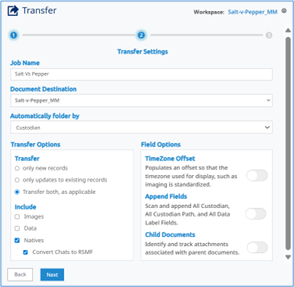
In Inspect and Review, you can now convert chat data to Relativity Short Message Format (RSMF) when transferring documents to Relativity. This enhancement allows Relativity users to view chat data in its native short message format. (918458, 952475)
To include RSMF files when transferring files to Relativity, navigate to the Transfer page. In Transfer Options, under Include, select Natives, and then select the Convert Chats to RSMF checkbox that appears.
The image below shows the Convert Chats to RSMF checkbox in the Transfer page.
Produce
Production updates
Standardized the file paths in .OPT, .LST, and .DAT load files for export and production workflows. Image, text, and native paths start with relative job names (for example, .\JobName\Images, .\JobName\Text, .\JobName\Natives) and exclude internal network references. The top-level folder no longer includes the Job ID, ensuring consistent formats across Desktop Client and DataHub downloads. (696212, 869514)
Administration
Client Dashboard updates
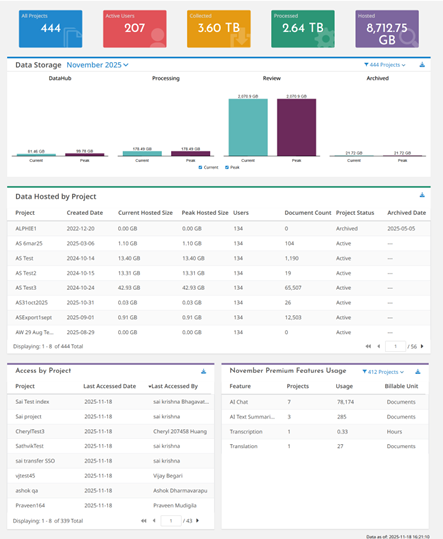
Made the following changes to the Client Dashboard to improve usability and provide more relevant insights. (978537, 985229, 978541, 985220)
-
Removed the Overview, Hosting Size Breakdown, and 30 Days Usage charts.
-
Added the Data Storage chart and the Access by Project and Premium Features Usage tables.
The image below shows an example of the updated Client Dashboard.
For more information about the updated Client Dashboard, refer to Client Dashboard.
Project Dashboard update
Made the following changes to improve the relevance and usability of the Project Dashboard. (995979, 999579)
-
Removed the Hit Rate, Reviewed Progress, and Data per Custodian charts.
-
Renamed Percent Hit Rate to Percent In Review in the Summary section.
Processing Report update
In the Processing Report, the system now counts top-level archive files only in the Excluded Archives column. These files are no longer included in the Expanded File Count column.
For Microsoft OneNote files, the system behavior depends on the Extract Pages from OneNote Archives setting in Project Settings:
-
When enabled, the system counts the top-level .ONE file in the Excluded Archives column.
-
When disabled, the system counts the file in the Expanded File Count column instead.
(1014400, 984743)
Bugs fixed in Release 4.5
The following bugs were resolved in this version.
|
Number |
Title |
|---|---|
|
394356 |
React | Production | Do not allow blank names for fields. |
|
741654 |
Printing | Bates number is not displayed in the preview while printing third party images |
|
834416 |
Overlay Custodian | Export | Export fails due to difference in custodian for Parent and child documents - Investigate Parent/Child Relationship Being Incorrect |
|
934022 |
Search Builder | Unable to load Search Builder due to ConfigError: Filter "Bates_Range" already defined |
|
940363 |
Production | OCR for searchable .pdf not running when there is already searchable text |
|
941584 |
Duplicate User Accounts/Entries Created for Different Company IDs |
|
958739 |
Loading | If Document number has [] then update loading job throwing a validation error. |
|
985575 |
React | Highlights | Duplicate terms allowed in Highlights despite case-insensitive matching |
|
988566 |
React | Navigating to Keyword Hits with a document in the viewer causes "Document not available in review" error message |
|
988950 |
SHR | Search Hit Reports with no summary tab do not calculate "Total GB Size Eligible for Review" |
|
989803 |
Filter | Fields for Deleted Filter Jobs should not be displayed in any location |
|
990266 |
Epiq Internal Feedback | When clicking on metadata icon to copy text from a field, the first attempt always fails and the popup closes |
|
997754 |
React | Undocking the viewer in React and changing doc count to 500 per page gives unresponsive toast message. |
|
1000683 |
React | Processing Report | Report includes unselected data names |
|
1006016 |
Production download | Missing template_name field in JSON Object during production download |
|
1009823 |
Document metadata displays 'Has Annotations: Yes' after annotated image is replaced or deleted |
|
1011991 |
React & Angular| Client Settings | "Permission denied" error appears when attempting to enable inactive user account |
|
1014473 |
React | PII/PHI | Feature is available in project creation on envs where it shouldn't be available |
|
1014551 |
Undocked View | React | There's a delay between loading animation end and managed fields being populated |
|
1015517 |
Coding forms | Unable to select text from coding panel |
|
1015537 |
Coding Forms | Re-docking locks the coding form state |
|
1016242 |
React | Assignments | When users of a lower role (Project Manager - Reviewer) are assigned multiple Batches across Assignments and select a batch that isn't from the first assignment in the list, they will be switched to batch of the first assignment |
|
1016363 |
Highlights | Proximity Highlighting Fail When Punctuation is Present |
|
1016621 |
Highlights | Reviewer user roles cannot see highlights |
|
1017914 |
Epiq Internal Feedback | Renaming a folder that is a sub folder should retain the parent hierarchy automatically |