Epiq Discover Version 4.4 Release Notes (October 2025)
This release contains updates and improvements to Epiq Discovery. The following notes highlight new enhancements to Epiq Discovery and provide a list of bugs addressed in this release. All new features and enhancements are available to you when using our New interface. To view new functionality, make sure you set the Toggle at the top of the page to New instead of Classic.
Release Highlights
In this 4.4 Release, you immediately access the latest Epiq Discover features and navigation improvements. The toggle at the top of the page is set to New by default, ensuring you benefit from all current features and enhancements. If you previously used the Classic interface, you experience the updated layout and functionality upon your next sign-in.
Release 4.4 contains the following features, as well as additional enhancements listed in this document. The following sections contain details about these features and enhancements.
-
Feature Preview: Native Excel redaction. Users can review and redact Excel files using the Native Excel Viewer. Epiq Discovery supports OCR, Imaging, and Production of redacted Excel files.
-
AI Chat. You can now apply filters for conversations within Chat, allowing you to narrow down the document population. You can filter documents using custodian name, file type, and parent date.
-
Litigation Support. For users with the Litigation Support role, added the ability to access the Inspect page. They can now search, assess, and promote documents to Review without relying on chained jobs or filters.
-
Audit History Report by User. You can now use the Audit History Report by User to track changes to Project Settings, as well as the creation, editing, and deletion of saved searches.
-
User Admin. You can now invite users to projects across multiple client tenants using a single account. This enhancement simplifies user management and improves cross-client collaboration.
Enhancements in Release 4.4
This release contains the following enhancements and updates.
Inspect/Review
Feature Preview: Native Excel Viewer
In Inspect and Review, we added a new feature called Native Excel Viewer. Using this, you can review and redact Excel files directly within the native viewer. This viewer enables you to interact with Excel files in their native format, supporting XLSX and XLS files. It offers redaction tools, which allow you to redact content and download the redacted file. You can also search for specific text or labels and add redaction reasons.
Note that the Native Excel Viewer is currently available as a Feature Preview and is not enabled by default. Enabling this feature in Project Settings provides you with the opportunity to gain hands-on experience with a newly designed feature that is functional, but not complete. Use this preview feature with the understanding that it is not yet fully complete or supported.
You can apply redactions by selecting a range of cells. When opening a file in the Excel Viewer, the system displays all hidden rows, columns, and sheets.
When you apply redactions to XLSX or XLS files, the system automatically saves your changes every 20 seconds. Additionally, when you switch from the Excel Viewer to another tab, the system automatically saves any applied redactions. These actions update metadata fields such as Has Redactions and Redaction Type, which also appear in the User Audit History Report and Document History.
You can enable or disable the Excel Viewer in the Project Settings under Document List and Viewer Settings. By default, this option is disabled for new projects.

The following limitations apply when using the Native Excel Viewer. (895543, 895574, 994075)
-
The Native Excel Viewer supports XLSX and XLS file sizes up to 50 MB. For larger files, the system opens the file in the original viewer.
-
Redactions cannot be applied to entire rows, columns, or sheets; charts; or embedded images. Charts with external data sources in XLS or XLSX formats are not displayed.
-
The search functionality does not highlight or navigate to resulting cells. Additionally, keyboard arrow keys do not work for navigating within the spreadsheet.
-
In the Excel Viewer, individual redactions cannot be removed, however, you can remove all redactions from the document.
-
You cannot perform redactions on a file if it is protected.
To redact a Microsoft Excel native file, refer to Redact an Excel Native in Review.
Feature Preview: Image Template update
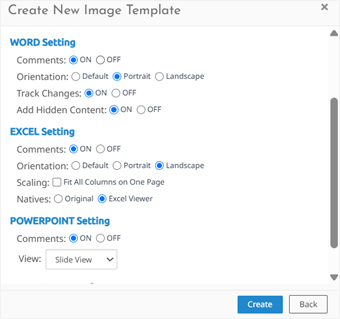
In Inspect and Review, added the ability to support the Excel Viewer for imaging XLSX and XLS files. When creating a new Image Template, you can now select Excel Viewer under the Excel Settings. When selected, imaging picks the file directly from the Excel Viewer. By default, the Excel Viewer is enabled. (895562)
Chat: Added the ability to apply filters
You can now apply filters for conversations with Chat, allowing you to narrow down the document population. You can filter documents using the following options. (940722, 940725, 940726, 940727, 943346, 985400, 990264)
-
Custodian
-
File Type
-
Parent Date
To apply a filter, follow these steps.
-
In the Main Menu, select Review and then Chat.
-
In the Filter section, click Custodian, File Type, or Parent Date.
-
For Custodian or File Type, select one or more options from the dropdown. Use the Search box to find a specific item.
-
For Parent Date, select an option from the operator dropdown, then select a date.
-
-
Click Apply.
-
Optional. To clear filters, click Reset.
The image below shows an example of a chat with filters applied.
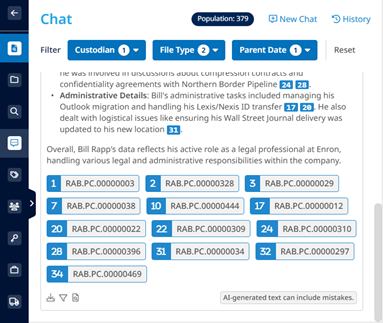
When you apply filters, a filter icon  appears at the bottom of the chat response. Click this icon to view the filter details. Additionally, the Population count at the top of a chat indicates the number of documents currently in the conversation, which updates dynamically as you apply or modify filters.
-
You can view the applied filters in the chat history.
-
The downloaded chat file shows the filters applied.
Document Action: Folder by Metadata update
When adding folders by File Path, the Folder by Metadata confirmation dialog now shows how many folders the system creates if that count exceeds 50. When presented with a folder count, users have the opportunity to cancel the action. This folder count includes the Missing File Path folder that the system automatically creates when the File Path information is unavailable for a document.
The maximum number of folders the system creates using the File Path metadata is now configurable. To change this limit, contact your Epiq Discovery Administrator. If you try to create more folders than the maximum allowed per job, the system displays the Cannot complete action dialog box, which shows the folder limit. (961960, 986102, 972707)
Microsoft OneNote processing update
The system now retains the original page or section names for content extracted from .one and .onepkg files. Unsupported characters in file names do not alter the original names. For pages without titles, the system does not assign a file name. (988778)
Image support for Microsoft OneNote and Project files
In Inspect and Review, you can now image Microsoft OneNote (.ONE) and Microsoft Project (.MPP) files using Document Actions>Image. Previously, these file types displayed binary content in the native viewer. (946036, 946044)
Auto Redaction update
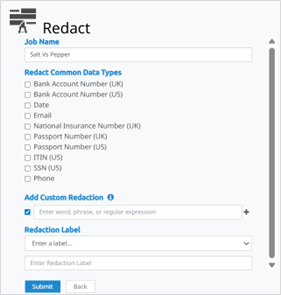
You can now add a redaction label when automatically redacting documents. A new Redaction Label field allows you to choose from existing options or create your own label. This update supports both common and custom data types and improves flexibility when redacting for different reasons. (379503)
To add a redaction label, navigate to the Redact page. In the Redaction Label field, do one of the following.
-
Select an existing redaction label.
-
Create a new label. To do so, select Enter a label, then type a label name in the text box.
The image below shows the Redaction Label field in the Redact page.
Produce
Production Template updates
To improve integration with Relativity, we removed the Color option from Color Setting in the IMAGES tab of the Production Template.
Additionally, standardized the image output formats in produced documents. (419906)
-
All black-and-white images are now in TIFF format.
-
All color images are now in JPG format.
Feature Preview: Added the ability to produce redacted Excel files
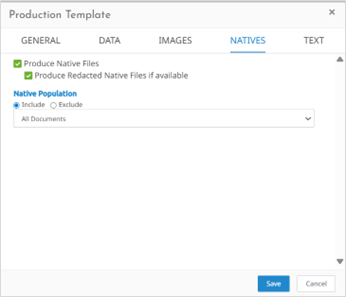
In the Production Template, added the ability to produce redacted Excel files in their native format. When creating a Production, you can enable this feature by selecting the Produce Redacted Native Files if available checkbox in the NATIVES tab. When enabled, you can export redacted XLSX or XLS files directly. (886763)
The image below shows the Produce Redacted Native Files if available checkbox.
Administration
Persistent highlights updates
When specifying persistent highlight terms in Project Settings>Review>Highlights, you can now include complex terms using logical operators (AND, OR, NOT), proximities (W/N), or wildcards (*). You can also use quotation marks (“ ”) around a word or phrase to match it exactly and use parentheses to group complex terms.
The functionality of logical operators, proximity operators, wildcards, and grouping is similar to their use in Search. For more information on how to use them, refer to Search syntax guidance.
Exact matches follow these rules.
-
Case-insensitive
-
Whole word boundary (no partial matches). For example, "cat" highlights only cat, not category.
-
Special characters match exactly.
-
Accent characters match both accented and normalized ASCII equivalents. For example, "Élise" matches Élise and Elise.
-
To match a quotation mark, escape it with a backslash. For example, "She said \"I am ready for this challenge\""
Additionally, we limited the maximum number of characters allowed in a term to 50. When uploading terms in bulk using a CSV or TXT file, if the file contains a term with more than 50 characters, the Upload Completed with Errors dialog box indicates this and displays the term. (986028, 975951)
Audit History Report by User updates
Track project setting changes
You can now use the Audit History Report by User to track changes in Project Settings. To do so, perform the following procedure. (558531)
-
In the Account Menu, select Project Report.
-
In the Project Report dialog box, set the following parameters.
-
In Report Type, select Audit History Report.
-
In Report By, select User.
-
In Users, click
 to select all users or select specific users.
 -
In Scope, select Settings.
-
Optional. To specify a date range for the report, in Date, select a Start and End date.
-
Click Create.
-
The report displays the users’ names and email addresses, the project setting names, their old and new values, and the dates and times of the changes.
Track saved search changes
You can now use the Audit History Report by User to track the creation, editing, and deletion of saved searches. To do so, perform the following procedure. (977462)
-
In the Account Menu, select Project Report.
-
In the Project Report dialog box, set the following parameters.
-
In Report Type, select Audit History Report.
-
In Report By, select User.
-
In Users, click
to select all users or select specific users. -
In Scope, select Saved Search.
-
Optional. To specify a date range for the report, in Date, select a Start and End date.
-
Click Create.
-
The report displays the users’ names and email addresses, saved search names, actions performed on the saved searches, and the dates and times of the changes.
Added the ability for Litigation Support users to access Inspect
For users with the Litigation Support role, added the ability to access the Inspect page. Previously, this role could process data but could not view or promote documents directly from Inspect. With this update, they can search, assess, and promote documents to Review without relying on chained jobs or filters. (906731)
This role now has access to the following Inspect features.
-
Document actions and dot actions.
-
Docked and undocked viewers.
-
Folders, coding forms, keywords, and jobs.
Feature Preview: Enable Excel Viewer in Project Settings
In Account Menu>Project Settings>Document List and Viewer Settings, added the ability to enable the Excel Viewer. When enabled, XLSX and XLS files open in the Excel Viewer instead of the default original viewer. By default, this option is disabled for new projects. (341290)
To enable the Excel Viewer, refer to Enable Excel Viewer.
Added the ability to access projects across multiple clients
You can now invite users to access projects across multiple client tenants using a single account. Previously, users needed separate accounts to work on projects under different clients. This enhancement simplifies user management and improves cross-client collaboration.
Project Manager or users with a higher role can invite new or existing users to projects under any client. Each invitation includes only the client and project name from which it originated, maintaining strict data isolation.
After logging in, you now land on a client list page that displays all clients to which you have access. When you select a client, the system shows all associated projects. Even if you have access to only one project, you still see the client list first. Client Admins can view and manage only the users and projects within their own tenant.
You can hold different roles across clients, such as Client Admin for one client and Project Manager for another. Within the same client, the system applies the highest role and prevents you from holding multiple roles. If you disable a user in one client, the system preserves their access to other clients. You can still invite disabled users to new projects under different clients. (926540, 978560)
In Epiq Discovery 4.3 or earlier, when you click Enable Account, the system activates users whose accounts were disabled or inactivated, even if no role is assigned.
In Epiq Discovery 4.4, with the introduction of multi-client tenancy, if a user was invited to only one project and that project is deleted, the user still appears in the Client Manage Users page as INACTIVE but clicking Enable Account has no effect. To activate the user, you must assign a Role and click Save. Similarly, for users whose accounts were disabled in version 4.4, clicking Enable Account does not activate them. You must assign a Role and then click Save to make the user active.
Bugs fixed in Release 4.4
The following bugs were resolved in this version.
|
Number |
Title |
|---|---|
|
795576 |
Processing | Processing completing with error 'Failed to get the worker IP' |
|
906741 |
Image Overlay | Some images or natives fail to load due to MySQL insert failure |
|
968441 |
React | Save searches | Renaming a folder prevents loading documents in saved search containing folder as a condition |
|
968476 |
React | Saved Search | Moving a folder to another folder prevents loading documents in saved search containing folder as a condition |
|
975157 |
Desktop Client | Production Download | Download of a production with over 500,000 pages failed |
|
982889 |
Export CSV | Unable to download the export CSV |
|
984803 |
Native viewer | Document viewer fails to load all pages and embedded content |
|
985103 |
React | Coding Forms | Pinned Coding Form does not maintain position if Doc List changes |
|
985796 |
React | Assignments | Removing user from assignment unassigns batches and causes batch status display issues |
|
986459 |
Loading | loading completed with error and .dat does not show accurate result |
|
986549 |
Loading | Load job discrepancy within pop-up and job completed with error |
|
986550 |
Loading | Overlay job completed with errors 'The provided token has expired.' and discrepancy in the Image count |
|
988288 |
Epiq Internal Feedback | Highlighted term with a wild card is over-inclusive in native viewer |
|
988291 |
Epiq Internal Feedback | Odd behavior for viewing threads and attachments on document list |
|
988466 |
Coding Forms Builder | Field selection sorts newly created fields at bottom of list if field name begins with lowercase character |
|
989269 |
Epiq Internal Feedback | "Securable Group Ids" is a field is present in the Reviewer tracking settings and manage fields. |
|
989273 |
React | Reprocess | Inconsistent behavior found with submission workflow when creating jobs with special characters |
|
990225 |
NDT | Document appears in its own near duplicate list |
|
991602 |
React | Data Assessment | Custodian shows as "DOT" instead of "." |
|
995524 |
React | Fields | Custom fields are still visible even after being marked as inactive |
|
997475 |
React | TSA | UI | SUM/Average | Output displays the field name as "File Size (Bytes)" when displayed value is in KB |
|
998363 |
React | Save and Save As buttons not updating DATA and TEXT tabs for completed productions |
|
999134 |
Django | Remove print statements so Folder Tree will load |
|
1000055 |
Undocked Viewer| Document Actions panel fails to open consistently in the Undocked Viewer |
|
1000099 |
React | Fail to preview M4A file in Native Viewer |