Epiq Discover Version 4.2 Release Notes (June 2025)
This release contains updates and improvements to Relativity. The following notes highlight new enhancements to Epiq Discover and provide a list of bugs addressed in this release. All new features and enhancements are available to you when using our New interface. To view new functionality, make sure you set the Toggle at the top of the page to instead of .
Release Highlights
Release 4.2 contains the following features, as well as additional enhancements listed in this document. The following sections contain details about these features and enhancements.
-
. You can now transfer specific documents to the AI model using Chat in Epiq Discover. Added the ability to download a chat response for easy sharing or record keeping.
-
. Added the ability to automatically propagate coding values across related documents when tagging documents using coding forms or quick tags. You can choose to propagate coding values to related documents by family, emails thread, near duplicates, or a combination.
-
. Added the ability to produce only a part of the document set as images. You can specify which documents of the total production population should be produced as images. Any documents you do not specify will not be validated for images. Any documents you do specify but are included as slipsheets will also not be validated for images.
Enhancements in Release 4.2
This release contains the following enhancements and updates.
General
System navigation updates
Made the following changes to the system navigation to enhance the user experience. (955833, 937630)
-
Clicking the Epiq Discover logo now navigates to the page that is displayed when you log in, which varies depending on your role.
-
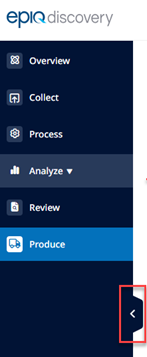
Updated the style and position of the expand/collapse handle in the left navigation menu. The following image shows the new expand/collapse handle.
User Settings update
In , added a new option that allows Litigation Support or higher roles to create a time limited one time passkey to establish a secure connection between Epiq TMX and Epiq Discover.
You can generate a passkey which is valid for five minutes and use it to authorize connection between Epiq TMX and Epiq Discover. You can generate a new passkey at any time. The system displays a countdown timer, and you must copy the passkey to use in Epiq TMX before it expires or before switching screens. (937820)
To generate a passkey, perform the following procedure.
-
In the , select .

-
In the tab, click .
-
and paste the passkey into Epiq TMX when prompted to set up a secure connection.
Process
Support of DGN and EVTX files
The system now supports the collection and processing of AutoCAD DGN (up to version 8) and Windows Event Log EVTX files. The system populates the following fields for these file types during processing. (924160, 924676)
DGN file fields
The following table provides the list of existing fields that the system populates for the AutoCAD DGN files.
|
Field name |
Description |
|---|---|
|
Author |
Name of the person who created the document. |
|
Date Accessed System |
The last accessed date of the file (extracted from file system). |
|
Date Created |
The native file created date (as stored in file metadata, not in the file system). |
|
Date Created System |
The file created date (extracted from the file system). |
|
Date Modified |
The native file last modified date (as stored in file metadata, not file system). |
|
Date Modified System |
The file last modified late (extracted from the file system). |
|
Date Printed |
The native file last printed date (as stored in file metadata, not the file system). |
|
File Name |
Name of the original native file. |
|
Last Author |
Username of the last person who edited the file. |
|
Organization |
The organization or business entity that used this application to manage its projects and resources. |
EVTX file fields
The following table provides the list of existing fields that the system populates for the Windows Event Log EVTX files.
|
Field name |
Description |
|---|---|
|
Date Accessed System |
The last accessed date of the file (extracted from file system). |
|
Date Created System |
The file created date (extracted from the file system). |
|
Date Modified System |
The file last modified date (extracted from the file system). |
|
Extracted Text |
Full text of EVTX files. |
|
File Name |
Name of the original native file. |
PDF Portfolio processing enhancements
Enhanced the processing of PDF Portfolio files as follows.
-
The system processes the standalone PDF Portfolios or those within ZIP files as container formats, similar to ZIP and PST files. It codes the field with . The documents within the PDF Portfolios are processed as parent documents.
-
The system processes the PDF Portfolio files within emails or Microsoft Teams messages as attachments and codes the field with . The documents within the Portfolio PDFs are processed as child documents.
In both scenarios, the field displays , and the field displays . (733632, 936975)
Inspect/Review
Chat updates
Chat updates include manually transferring selected documents to the AI model, enabling or disabling the automatic transfer of promoted documents to the AI model, and downloading chat responses. Also, added the following user interface changes in this feature. (925352, 928695, 928798, 940716, 941321, 946832, 954312, 954326, 954329, 954331, 957799, 965771, 959310)
-
Renamed > to .
-
Each chat now shows the date and time.
-
Renamed Epiq AI case creation job name to .
Manually transfer documents to AI model
Added the ability to manually transfer selected documents to the AI model. In Inspect and Review, you can now transfer documents to the AI model using >. If it displays a lock, it is not enabled. To enable this feature, contact your Epiq Discover Administrator.
Once documents are transferred to the AI model, you can ask questions about them in >. Note that for documents transferred to the AI model from Inspect but not promoted, the citation number and document number appear in the chat response. However, clicking the citation or document number does not display the document in the Document Viewer.
To transfer specific documents to the AI model, refer to Add documents to AI models.
As a best practice for adding a sample document set to the AI Model using random sampling, always move the sampled documents to a folder first, and then use that folder to add the documents to the AI Model.
Enable or disable automatic transfer of promoted documents
The System Administrator or Epiq Administrator can now enable or disable the automatic transfer of promoted documents to the AI model.
Download a chat response
You can now download a chat response for easy sharing or record keeping. The downloaded chat document includes the question you entered, the chat response with cited document numbers, and the date and time the response was generated. You can download chat responses from previous chats.
To download a chat response, perform the following procedure.
-
In the Main Menu, select and then .
-
In a chat response, click
 to download the response.
 -
When the downloaded file name appears, click the file to open it in a new browser tab. Alternatively, you can access the file in your Windows Downloads folder. The document name includes Chat and a time stamp.
Automatically propagate coding values across related documents
Added the ability to automatically propagate coding values across related documents when tagging documents using coding forms in the Document Viewer or quick tags. This feature enhances efficiency and ensures consistency during document review. You can choose to propagate coding values to related documents by family, email thread, near duplicates, or a combination. Understand that propagation can affect documents outside of the reviewer’s assignment, depending on how the assignments are defined.
When you enable coding propagation in project settings, all quick tags will automatically use propagation. To propagate field values in coding forms, you must set up propagation on Single Choice, Multiple Choice, or Short Text fields in the . By default, this feature is disabled. Review Manager or higher roles can enable this feature. (774738, 807057, 807059, 944418, 944422, 945642, 945642, 953201, 953204)
Enable propagation
In this release, we updated Project Settings with the following changes.
-
Renamed the >> tab to .
-
Relocated the setting to the main page and removed the tab from >.
-
Added a section to the tab in >.
To enable propagation, perform the following procedure.
-
In the , select .
-
In the left pane, click .
-
In the tab, under , do the following steps.
-
Set the toggle to the right.
-
In , select one or more propagation methods from the following.
-
Family
-
Email Thread
-
Near Duplicates
-
-
Optionally, select the check box.
With this option enabled, if a reviewer codes a coding form field for which you have set up propagation or applies a quick tag, the dialog box appears, allowing you to update the propagation methods or skip propagation.
-
-
Click .
Coding forms: Set up coding value propagation for fields
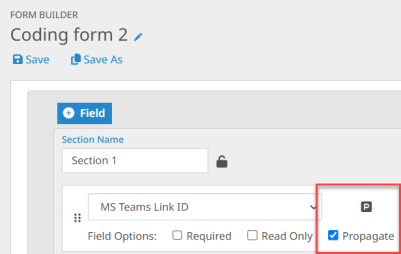
In a coding form, added the check box to the . Select this checkbox for any Single Choice, Multiple Choice, or Short Text field that is not read-only to enable the propagation of coding values. Note that this checkbox appears only when propagation is enabled in Project Settings. When you select this option, the Propagation  icon appears next to the field name. The following image shows an example of the Propagation icon in .
-
When you select this option for the first time in a coding form, the dialog box displays the selected propagation method from the Project Settings. Then, you need to confirm.
Also, when reviewing the documents, in the dialog box, the Propagation icon  appears next to the field name. The following image shows an example of the Propagation icon in the dialog box.
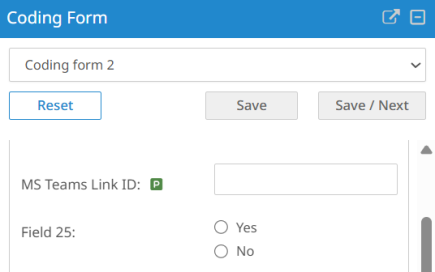
Hovering over the Propagation icon shows where the coding values are propagated.
Propagate coding values
After enabling propagation in Project Settings and setting up propagation for fields in a coding form, the dialog box appears when you do the following.
-
In the Document Viewer, when you code a coding form field that has the Propagation icon next to it and save the changes.
-
In the Document List in Review, when you apply a quick tag.
In the dialog box, do the following steps.
-
To skip propagation, click .
-
To propagate coding values, do the following steps.
-
Select one or more available propagation methods. The methods that appear reflect the methods chosen in Project Settings.
-
Family
-
Email Thread
-
Near Duplicates
-
-
Click .
-
Also, when you apply a quick tag, the Action column of the Audit History Report now shows quick tagged. If a document is tagged using propagation, this column shows propagated. (943684, 948178)
Image VSDX files
You can now image Microsoft Visio VSDX files using > in Inspect or Review. (946444)
Transparent redaction view update
Now, in the Viewer, when you click  in the Toolbox to view the redacted information, the transparent redaction view remains persistent when navigating between documents or performing any document actions within a single session until you click it again. Note that transparent redactions do not persist when switching projects or refreshing the page. (947816)
OCR update
The system now supports the OCR of the languages listed in the following table. (964572)
|
Afrikaans |
Albanian |
Amharic |
Armenian |
|
Azerbaijani |
Azerbaijani - Cyrillic |
Bengali |
Bosnian |
|
Bulgarian |
Catalan |
Croatian |
Czech |
|
Danish |
Dutch |
Estonian |
Filipino |
|
Finnish |
Georgian |
Greek |
Gujarati |
|
Haitian |
Hungarian |
Icelandic |
Irish |
|
Kannada |
Kazakh |
Korean vertical |
Latvian |
|
Lithuanian |
Macedonian |
Malay |
Malayalam |
|
Maltese |
Marathi |
Mongolian |
Norwegian |
|
Pashto |
Polish |
Punjabi |
Romanian |
|
Serbian |
Serbian - Latin |
Sinhala |
Slovak |
|
Slovenian |
Spanish |
Swahili |
Swedish |
|
Tamil |
Telugu |
Thai |
Ukrainian |
|
Urdu |
Uzbek |
Uzbek - Cyrillic |
Vietnamese |
|
Welsh |
|
|
|
Near Dupe and Threading job update
Improved the threading logic, which provides a better calculation of inclusive emails and establishes a tree hierarchy. This results in more consistent threading behavior, leading to better-threaded emails. This enhancement improved the email threading speed and performance by 2 times. (889439, 882484)
During Processing when is enabled, Epiq Discover can thread up to 2000 emails that have the same Subject using a single Thread ID while populating the field. Should subsequent emails with the same Subject be encountered (email 2001 or higher), the system will populate the field for those emails. However, for performance reasons, the emails will receive a new Thread ID per every additional block of 2000 emails with the same Subject.
Production
Produce only a part of the document set as images
Added the ability to produce only a part of the document set as images. You can now specify which documents of the total production population should be produced as images. Any documents that you do not specify or include as slipsheets will not be validated for images.
This enhancement allows the production document population to include native-only files (without corresponding image slipsheets) alongside other image files, while still passing image validation. To provide the ability to produce part of the document set as images, you can now validate images after selecting or updating the production template. (677443, 944878)
In >, added the new field. This field allows you to specify which documents to produce as image files, using a saved search or folder. This field has the following options.
-
. Uses the document population specified in >.
-
-
Once you specify documents in this field, the system performs image validation only on those documents.
Production page update
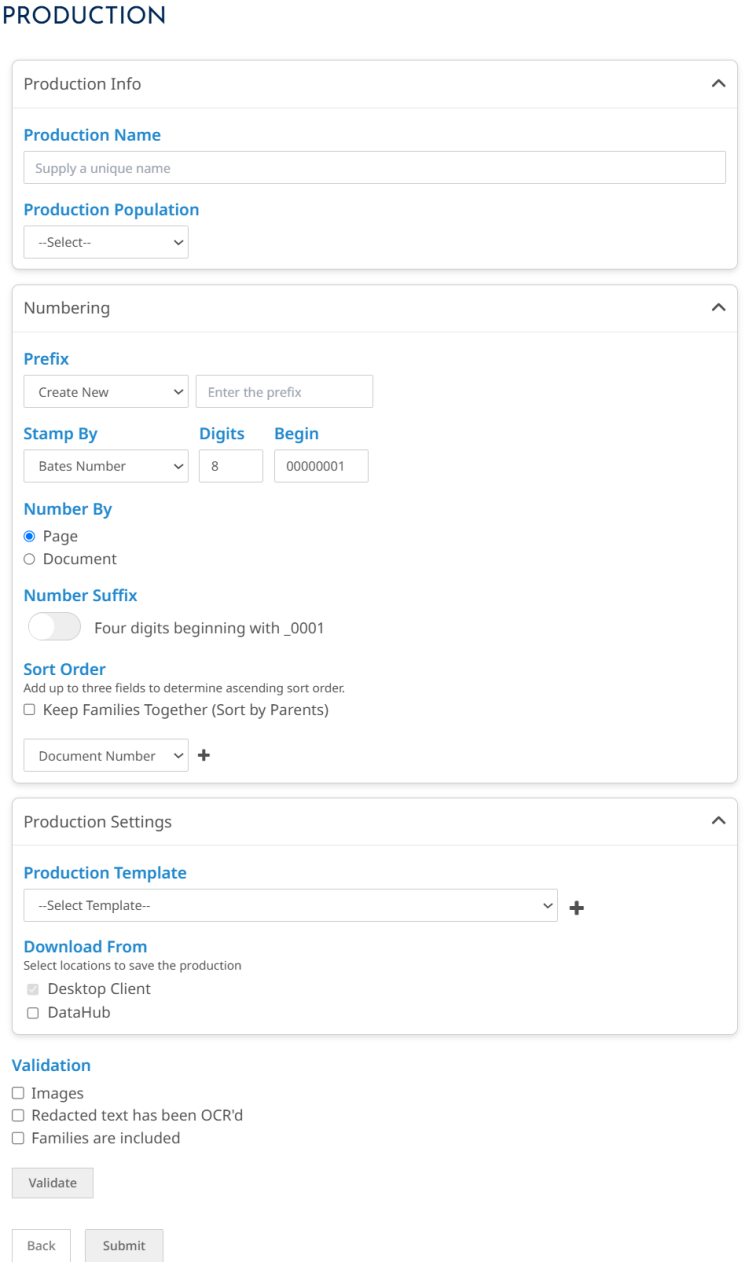
As part of this change, when creating a production, you no longer need to move between three wizard pages. Instead, all options appear on a single page, divided into the following sections.
-
. Specify the production name and document population.
-
. Determine how to stamp, number, and sort the documents in the production.
-
. Set the production template and download from option.
-
. Select the validations to perform.
Also, updated some of the section, field, and checkbox names to enhance clarity and usability, which includes the renaming of the following.
-
In the section, renamed to .
-
In the section, renamed to .
Clicking a section name expands or collapses the section. The following image shows the updated page.
Produce images with transparent redactions
Added the ability to produce images with transparent redactions so that the redaction box appears as shaded but you can view the actual redacted text within the frame.
To enable this feature during production creation, select the checkbox in the under >>. This checkbox appears only when you select the checkbox. The following image shows an example of a produced image with transparent redactions. (948797)
Field and checkbox name updates
Updated some of the field and checkbox names to enhance clarity and usability. The changes include the renaming of items shown in the following table.
|
Tab |
Previous name |
Updated name |
|---|---|---|
|
DATA |
Export Data |
Produce Data |
|
IMAGES |
Export Image |
Produce Images |
|
NATIVES |
Export Native File |
Produce Native Files |
|
TEXT |
Export Text |
Produce Text |
Administration
Chat setting update
Added under > , which displays the case ID generated in Epiq AI when you enable the AI model in Epiq Discover. (947185)
Time zone setting update
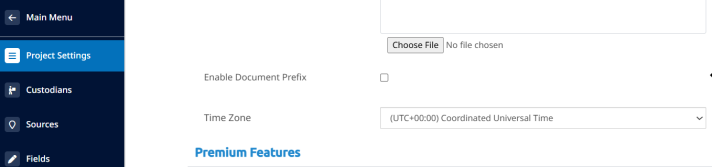
Now, the setting appears in > . (945642)
Bugs fixed in Release 4.2
The following bugs were resolved in this version.
|
Number |
Title |
|---|---|
| 904863 | Loading | Job status "Completed with error" is still associated with the loading jobs. |
| 915243 | Processing | Files extracted from various archive containers do not retain system dates |
| 924644 | Loading | MySQL entries are not deleted when writing to open search fails |
| 935890 | Doc Action | Document Renaming | When Document Rename "Include Family" option is enabled, it results in a "No value specified for parameter." error |
| 939198 | Angular & React | Data Assessment (EDA) | Promotion from dashboard does not work |
| 942207 | Epiq Internal Feedback | Issue with filtering Data Name/Job Name in React when compared to Classic view |
| 942744 | The system now successfully completes an image job even when one of the selected documents is an exception document with a placeholder image. |
| 946422 | Loading | Images in the UI do not update after image replacement overlay |
| 947834 | Folder | Folder job with errors "ReadWritePool - Connection is not available, request timed out after 60000ms (total=3, active=1, idle=0, waiting=1)" |
| 948416 | Client Dashboard | The system now shows the correct project archived date. |
| 951615 | React | Documents without extracted text spin without any message |
|
952052 |
React | Folder jobs created when performing actions user would not expect to submit a job (folder rename and deletion) |
|
952467 |
Production | After Production download the translated .txt documents contain blank text. |
|
952912 |
React | Highlighting | Selected color getting dark when viewing multiple documents |
|
953261 |
React | Inspect | Native Viewer | Download button should be present for Excluded Archives |
|
953935 |
Search Builder | Float fields with operators like < or > are unusable in Search Builder |
|
954401 |
Production | Production Template - "PDF" Image Format is misunderstood to be "Non-Searchable PDF" |
|
955645 |
React | Native Viewer | Error message and download button should be consistently available for unsupported file types |
| 957787 | React | The projects count in the drop-down list under Client production report should be same as per angular. |
| 958434 | React | Tags Project | Bulk Tag | Codes values not selected |
| 958540 | React | Download button is missing for MOV files in Inspect / Review page |
| 963397 | React | Unexpected space highlighting in content search panel |
| 963852 | React | Content Search | Incorrect number of hits pulled from Search Bar |
| 964087 | Manage fields | Saving default display is not sticking |
| 968330 | Coding Forms | Default Coding Form is created using an Import Project |