Epiq Discover Version 3.9.7 Release Notes (February 2025)
This release contains updates and improvements to Epiq Discover. The following notes highlight new enhancements to Epiq Discover and provide a list of bugs addressed in this release.
Release Highlights
Release 3.9.7 contains the following features, as well as additional enhancements listed in this document. The following sections contain details about these features and enhancements.
-
Added the ability to collect Microsoft Teams chats. You can process each message in a chat as an individual MSG file and also combine messages to view them in the HTML format.
-
Added the ability to collect modern attachments from the Microsoft Teams chats and Outlook emails. The system can collect modern attachments such as Microsoft Word and Microsoft Excel, as well as GIPHY attachments such as GIFs and stickers.
Enhancements in Release 3.9.7
This release contains the following enhancements and updates.
General
View the status of assignment creation
You can now view the progress of an job in the page, Projects Jobs page, or in the page in Review. There, when you select an job, you can view the following job details. (900385, 900105)
|
Submitted By |
User who submitted the job. |
|
Submitted Time |
Date and time the job was submitted. |
|
Assignment Criteria |
Saved search name used for assignment creation. |
|
Include Family |
Whether you selected the option ( or ). |
|
Associated Coding Panel |
Selected coding form. |
|
Reviewed Field |
The field you selected in . |
|
Batch Size |
The size of a batch that you specified in . |
|
Group By |
Specified group by option. |
|
Job Id |
Job identification number. |
Collect Microsoft Teams chats and modern attachments
You can now add Microsoft Teams chats to a collection. You can process each message in a chat as an individual MSG file and also combine messages to view them in the HTML format. Also, the system can now collect modern attachments such as Microsoft Word and Microsoft Excel, as well as GIPHY attachments such as GIFs and stickers from the Microsoft Teams chats and Outlook emails.
To collect Microsoft Teams chats or modern and GIPHY attachments, you need to collect a PST file containing the Microsoft Teams chats or Outlook emails using the local file collection. In >, if displays a lock, it is not enabled. System Administrators and Epiq Administrators can enable or disable these features for a client or project. (850696, 691768, 691773, 902158, 904969, 904860, 904088, 903701, 900358, 911616, 915032, 922863)
Collect Microsoft Teams chats
To collect Microsoft Teams chats, perform the following procedures in order.
-
Export the Microsoft Teams chats as a PST file.
-
In Epiq Discover, collect the PST file via Local collection. Refer to Collect Microsoft Teams chats and modern attachments for more information.
By default, the system processes each message in a chat as an individual MSG file. You can format chats to combine messages into an HTML file. To combine messages in a chat, enable the in Project Settings before processing the documents. For chats that last more than a day, the system creates a separate document (HTML segment). You can group chats into separate documents by days or months.
-
To combine messages in a chat, refer to Modify Microsoft Teams chats setting for more information.
When processing these documents, the system formats chats to combine messages into HTML format. You can view the status of the job in the page. To find all documents that comprise a chat spanning the selected , use Search Builder to match the during a specified date range (using the field).
If you process chats as individual MSG files, you can combine chat messages and view them in an HTML format. To do this, you need to collect and process these documents again with the enabled in Project Settings. If the existing HTML file has not been promoted, the system updates this file when additional messages from the same chat are collected and processed. If the existing HTML file has been promoted, the system creates a new HTML file. When you collect and process Microsoft Teams chats with this feature disabled, the system processes these documents as individual MSG files.
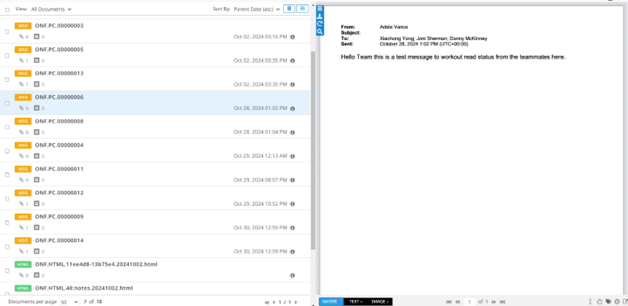
The following image shows an example of the chat MSG file in the viewer.
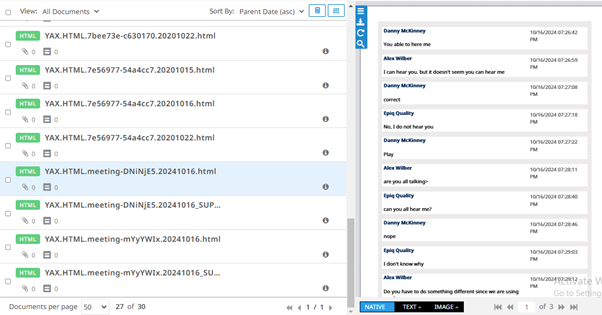
The following image shows an example of the chat HTML file in the viewer.
When is enabled in Project Settings, the field is set to . If that option is not enabled, the field is set to for informational purposes. For information about the fields that the system populates for the Microsoft Teams chats, refer to Microsoft Teams chat fields.
Collect modern attachments
The system extracts the following modern attachments from the Microsoft Teams chats and Outlook emails.
-
Standard file types (MS Word, Excel, PPT, PDF)
-
Audio and Video files
-
SharePoint and OneDrive Links
Modern attachments are saved in client’s Microsoft 365 tenant. To enable the system to collect modern attachments, you need to connect the system to the Microsoft 365 tenant using the Microsoft 365 credentials. To collect the modern attachments from the Microsoft Teams chats or Outlook emails, perform the following procedures in order.
-
Export the Microsoft Teams chats or Outlook emails as a PST file.
-
In Azure Portal, register Epiq Discover to the Microsoft 365. Refer to Register access to Microsoft 365 for more information.
-
To connect Epiq Discover to the Microsoft 365 tenant, in Project Settings, provide the Microsoft 365 credentials that the Azure administrator receives when registering the system. Refer to Enable modern attachment collection for more information.
-
Collect the PST file via Local collection. Refer to Collect Microsoft Teams chats and modern attachments for more information.
-
Process the documents.
The following image shows an example of the Microsoft credentials saved in the Project Settings.
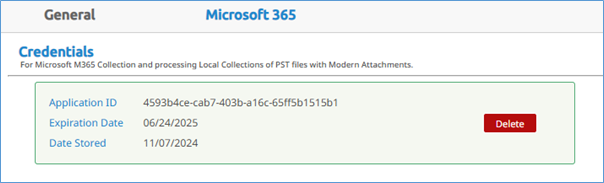
When you do not provide Microsoft 365 credentials before processing the documents, the system does not collect the modern attachments during processing and codes the field of the document with . Note that you cannot click a URL link in the native viewer. However, you can click a URL link in the downloaded native file.
Collect GIPHY attachments and reactions
The system extracts the following GIPHY attachments from the Microsoft Teams chats and Outlook emails.
-
GIFs
-
Stickers
-
Emojis
To extract the GIPHY attachments, perform the following steps in order.
-
Export the Microsoft Teams chats or Outlook emails as a PST file.
-
Collect the PST file via Local collection. Refer to Collect Microsoft Teams chats and modern attachments for more information.
-
Process the documents.
If this feature is disabled, when you collect the PST file containing the Microsoft Teams chats or Outlook emails, the system does not extract the GIPHY attachments and then codes the field with .
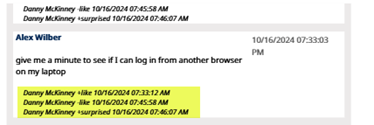
For reactions in a chat, the system shows only the reaction text in the processed document. The following image shows the examples for the reaction text in the chat HTML file.
Reprocessing Team chats
In this release, you cannot reprocess Microsoft Teams chats.
Bugs fixed in Release 3.9.7
The following bugs were resolved in this version.
|
Number |
Title |
|---|---|
|
416726 |
Viewer | Rounded date values don't match metadata |
|
852941 |
The system now populates the File Type field with the same field value as Epiq Discover Application Type during processing. Previously, the system coded this field only when you loaded documents through Desktop Client. Now, by using the File Type field in Search Builder, you can search for a file type within the processed document population. |
|
900487 |
Project Settings | Redactions without new reason changes are saving project settings |
|
901544 |
Imaging | Imaging fails when file extension is incorrectly set to .pdf |
|
912011 |
Client Dashboard | float() argument must be a string or a real number, not 'NoneType' |
|
913762 |
Review | Search for coding form tags is repeated 4 times |
|
918493 |
Mobile Collection | ValueError: invalid literal for int() with base 10: 'iPhone Cellebrite XML' appears when the user navigates through UI. |
|
920036 |
Mobile Collection | Mobile Collection completed with errors "The Fragment failed to complete in the allotted timeout" |
|
920654 |
Mobile collection | Update job status to failed when parent fragment fails |
|
920657 |
Issue Identified with MSG File |
|
921789 |
Promotion | Promotion via Data Assessment is getting failed |